
Plumbing Check Smart ID helps reduce repeated Plumbing Check notifications by identifying recurring pressure drop patterns. If Phyn detects a similar pressure pattern multiple times, Smart ID can help you manage future alerts for known or expected activity.
What is Plumbing Check Smart ID?
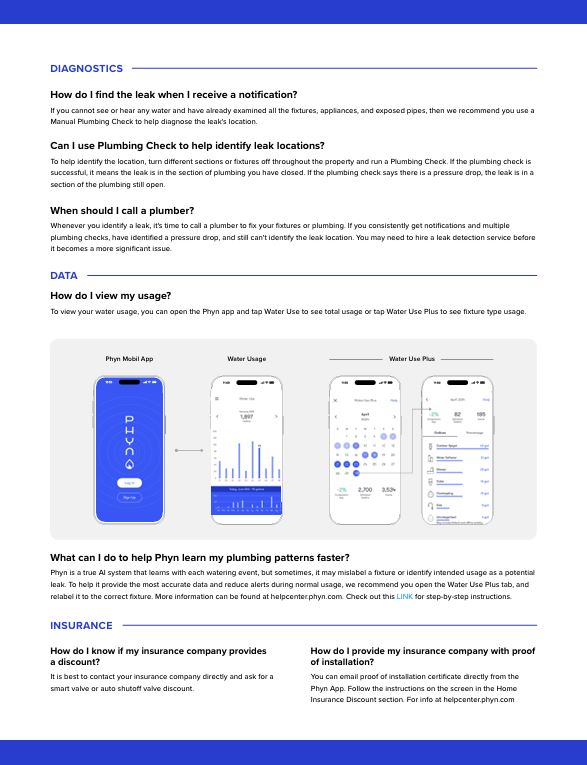
Plumbing Check Smart ID identifies recurring pressure drop events detected during automated nightly Plumbing Checks.
Examples may include:
Ice makers
Reverse osmosis (RO) systems
Automated pool fillers
Drip irrigation systems
Small fixture drips
Other known plumbing activity
Once identified, you can choose to silence future alerts from similar events for a selected period of time.
Only pause alerts when you are confident the activity is expected or you are actively working to resolve the issue.
How does Smart ID work?
Phyn compares recent Plumbing Check results and looks for repeating patterns.
A Smart ID notification appears when:
At least 5 similar pressure events are detected
Those events occurred within the last 10 automated Plumbing Checks
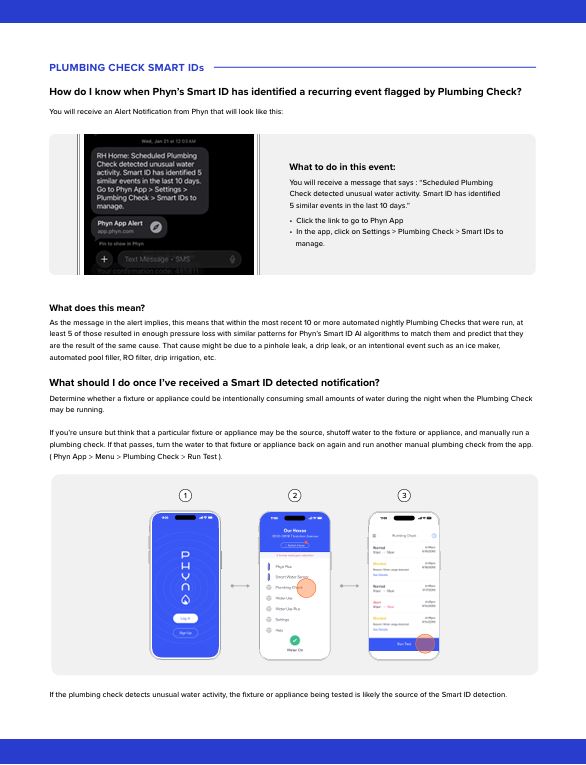
When this happens, you may receive a notification similar to:
"Scheduled Plumbing Check detected unusual water activity. Smart ID has identified 5 similar events in the last 10 days."
What should I do if I receive a Smart ID notification?
Before activating a Smart ID:
Consider whether a fixture or appliance could be intentionally using water overnight.
Identify anything that may run automatically, such as:
Ice makers
Irrigation systems
Pool fillers
RO systems
If you are unsure, test the suspected fixture or appliance.
To test a suspected fixture
Turn off water to the suspected fixture or appliance.
Open the Phyn app.
Tap Menu > Plumbing Check > Run Test
Run a manual Plumbing Check.
Turn the fixture back on.
Run another manual Plumbing Check.
If unusual water activity returns after the fixture is turned back on, it is likely the source of the Smart ID detection.
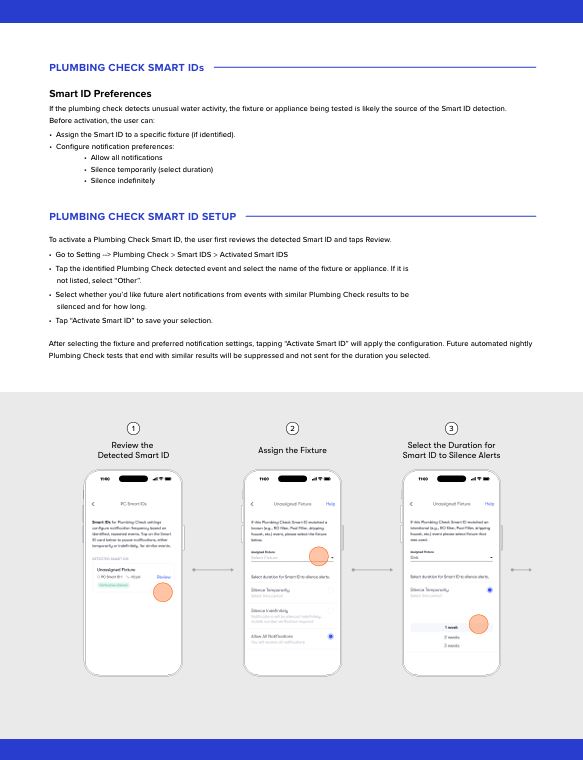
How to activate a Smart ID
Open the Phyn app.
Go to Settings > Plumbing Check > Smart IDs
Tap Review on the detected Smart ID.
Select the fixture or appliance name.
If it is not listed, select Other
Choose your notification preference:
Allow all notifications
Silence temporarily
Silence indefinitely
Tap Activate Smart ID
Once activated, future automated Plumbing Checks with similar results will follow your selected notification settings.
Managing active Smart IDs
To view or update active Smart IDs:
Open the Phyn app.
Go to Settings > Plumbing Check > Smart IDs
Select Activated Smart IDs
Update your fixture assignment or notification preferences as needed
Important
Smart ID is intended to reduce alerts from known and expected activity. It should not be used to ignore plumbing issues that have not been investigated.
If you continue receiving Plumbing Check notifications and cannot locate the source, consider contacting a plumber or leak detection specialist.
Add file